

 Download
 Order
OrderHow to Convert Slides to the Digital Format Safely
 Do you have full boxes of accumulated photo slides and wonder what to do with them? You can easily transfer slides to digital – and believe us, it doesn’t take much time. Below, we’ll talk about different types of slides and how they work. Then, we’ll show you how to digitize slides, and, as a bonus, we’ll give a few ideas on what to do with digital images, from restoration to backing up.
So, don’t let old memories fade away! Learn more about photo restoration and preservation to pass your warm memories down to future generations.
What Are Photographic Slides - Different Formats Explained
Photo slides are pictures mounted in cardboard or plastic frames. While both types are okay, plastic mounts are normally much more durable. Some slides also have tags with a brand’s name or logo. In the 1960s and 1970s, color slides became more widely available, and their usage and popularity accumulated over the years.
Slides were commonly used for family vacations, travel photography, and educational presentations. Our grandparents used a carousel slides projector to view their photos. However, slides are not as widely used today.
There are various slide formats created for different goals and situations. Let’s take a look at some of the most common types:
- 35mm slides. This is a classic format of a photographic slide. It is stored in a 2x2 cardboard frame that has a clear plastic cover protecting the picture itself.
- Half-frame 35mm slides. In the 1960s, these were especially popular as a budget-friendly option. They allowed photographers to shoot twice as many photos per roll of film.
- 126 slides. The 126 slide format has a plastic cartridge with 35mm film and is mounted in square frames. It was popular for ease of use and compatibility with Kodak’s Instamatic cameras.
- 120 slides. When photographers needed a larger photo area, they often used the 120 film slides format. It provided them with high image quality and detail.
- Stereo slides. This type of old slides is also known as 3D slides. They contain two images that create a 3D effect when viewed with a stereoscope.
Now that you know more about this page of photography history, let’s see how to turn slides into photos using 6 different methods.
How to Convert Slides to Digital? 6 Ways to Try
Even though “scanning slides” sounds like a time consuming thing, there are lots of quick and simple methods out there. Below, you’ll find the 6 best ways to digitize slides, ranging from professional services to DIY methods to try at home.
1. Convert Slides to Photos with Slide Scanners
Slide scanners are devices that transform negatives and slides to digital photos. To scan your pictures, you need to insert them into slots or trays and put them in the machine. You can also check out this review on the best slide scanners if you’re not sure what device to choose for slide conversion and need a little help.
 Word of Advice
2. Scan Slides to Digital Using Flatbed Scanners
For converting slides to digital, many people utilize the scanners they have at their disposal. If you have a flatbed scanner, you can set it to ‘transparency’ and choose the highest possible resolution. This way, digitized slides usually come out good enough for posting them on social media and getting a 4x6 print. Yet, it’s best to use a dedicated slide scanner even though it might be expensive. If you have an eye for this hobby, it will be a worthy purchase.
3. Use a Slide Projector and Camera to Digitize Slides
This DIY method is an affordable and effective way to digitize slides at home, especially for large collections. If you have a slide projector at hand, here’s how to transfer slides to digital with it:
1. First, you need to set up the projector to display slides sharply onto a white screen in a dark room.
2. Next, mount your camera on a tripod so it faces the screen.
3. Finally, take photos of each slide and begin transferring the images to your computer.
Word of Advice4. Turn Slides into Photos with a Mobile Phone
Digitizing slides is also possible with an iPhone or Android device. To do so, you need to download an app called SlideScan. The process is quite simple. You have to find a backlight source such as a window or computer screen. Next, hold your slide in front of the light and long-press the capture button in the app.
However, only the first few photos are available for free. If you need to convert a bunch of slides to digital images, you’ll have to purchase a paid plan.

5. Convert Slides to Digital at a Special Service
If you don’t want to deal with slides yourself, you can trust this job to services like Legacybox and KODAK Digitizing Box. They specialize in turning slides into high-quality digital formats. So how do they work? You make an order and send your slides to the service. They process the photographs, return you the original pictures, and deliver the digitized media.
Word of Advice6. Go to Local Stores to Transfer Slides to Digital
Another common way to convert slides to digital is using local photo stores and services. For example, you can visit the Walmart service, both online and offline. But keep in mind that they might not accept certain formats. Walmart lets you transform 110 mm, 126 mm, 127 mm, Super 127 mm, 35 mm, and Super 35mm slides into digital. If you’re going to use another service, don’t forget to check the available formats on their website.
What Can I Do with Digital Copies of My Slides?
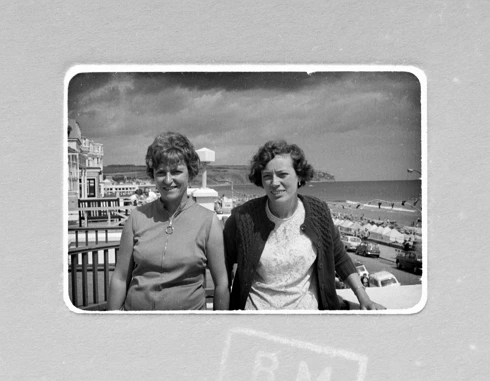

If your photos are not as high-res as you’d like or there are some defects in them, you can fix it instantly. PhotoGlory is one of the best photo restoration software programs to use for this job. This AI-powered tool lets you colorize black-and-white pictures, change the background, and adjust settings like exposure, contrast, temperature, and so on.
There are some other useful features you might want to use to edit a digital copy of a slide. They include noise reduction, vignetting, cropping, applying 100+ filters, making photos sharper, and fixing the red-eye effect. Plus, PhotoGlory allows you to export images as JPEG, PNG, BMP, and TIFF.
In addition, it’s essential to backup your pictures using cloud storage services. After uploading your files, you can also organize them in folders to navigate easily and efficiently.
Now you know 6 common ways to give old slides a new lease on life. First, we’ve talked about the basics of slide photography. Then we’ve shown you how to digitize slides and edit scanned old photos with beginner-friendly restoration software – PhotoGlory. Put it all into practice today, and once you’re done scanning slides, don’t hesitate to share those precious memories with your friends and family!
 Free Download